This game immerses players in a captivating world where interaction occurs primarily through text-based descriptions and commands. Through vividly depicted environments, detailed objects, and engaging scenarios, players navigate, explore, and strategize their way through the game's challenges.
In this game, you will utilize textual input to embark on a thrilling journey. Your objectives will include gathering essential items, confronting formidable foes, and engaging in dialogue with NPCs to acquire vital clues. Ultimately, you will seek out the path to victory by discovering the exit. The game's rich interactive elements ensure an engaging and immersive experience.
Project Idea
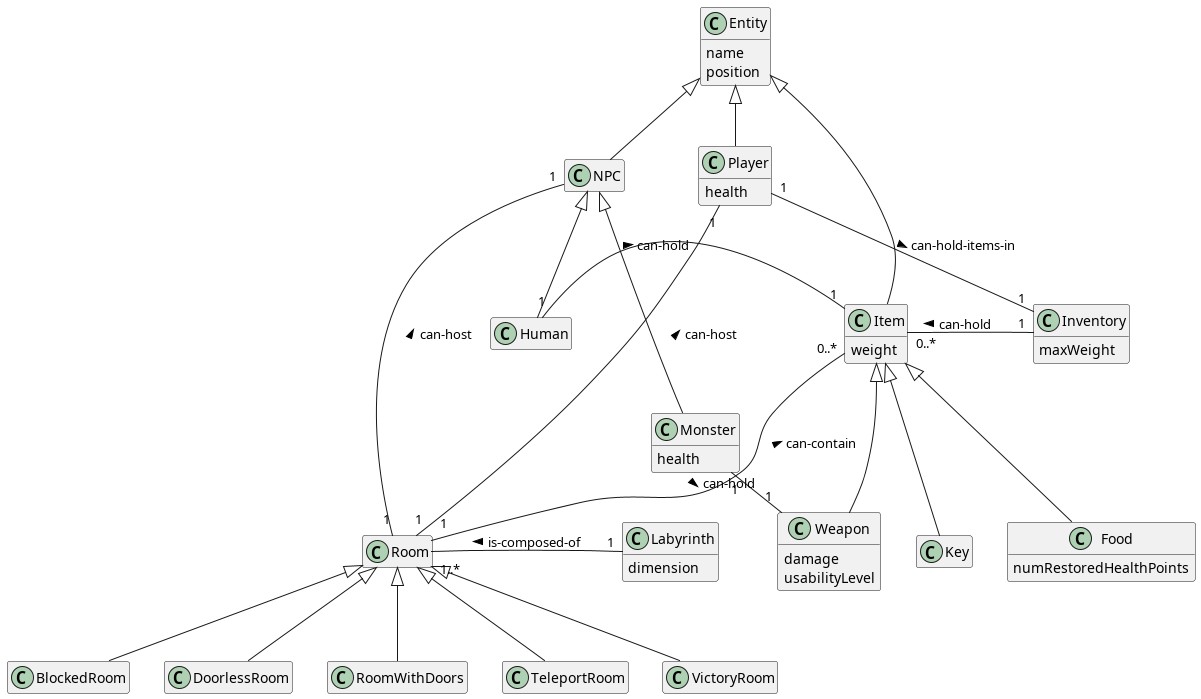
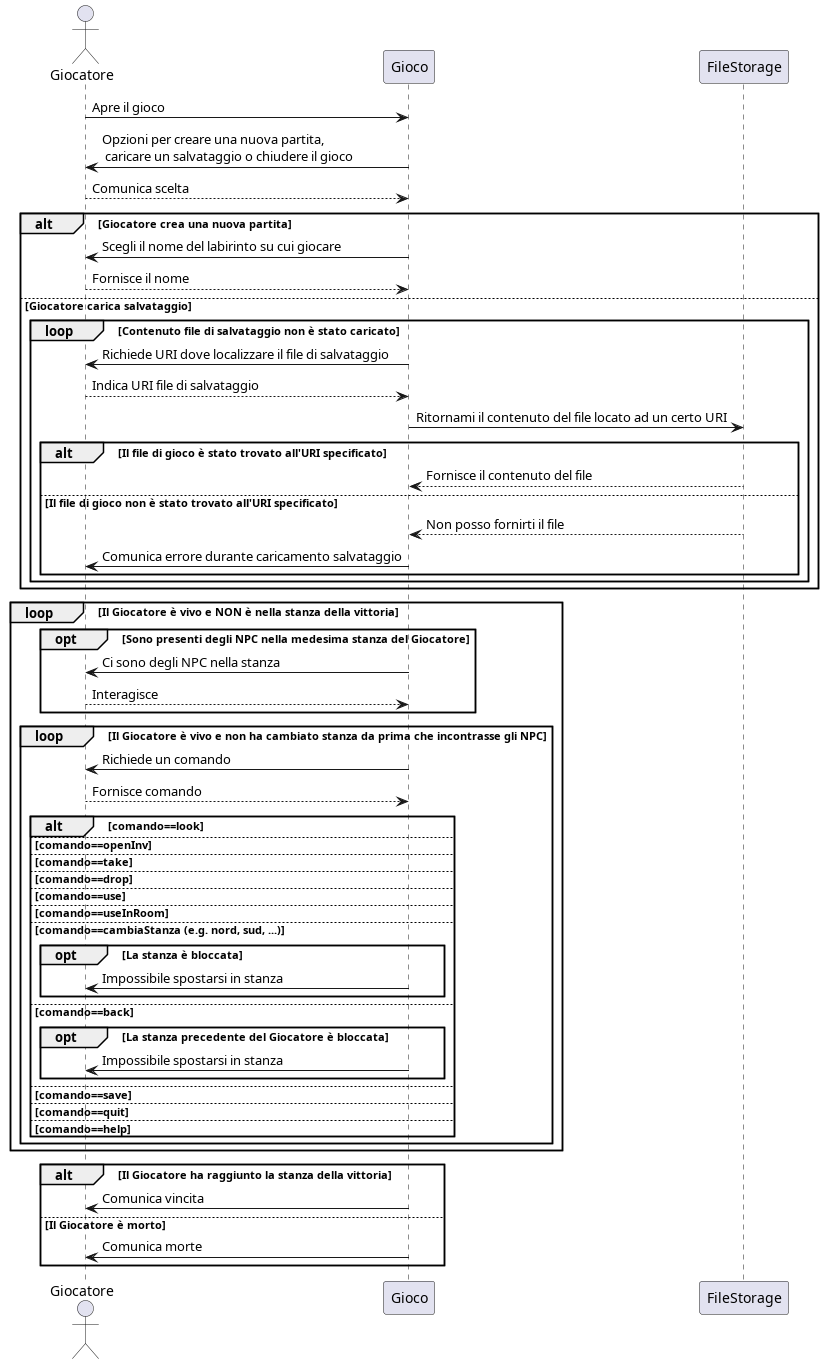
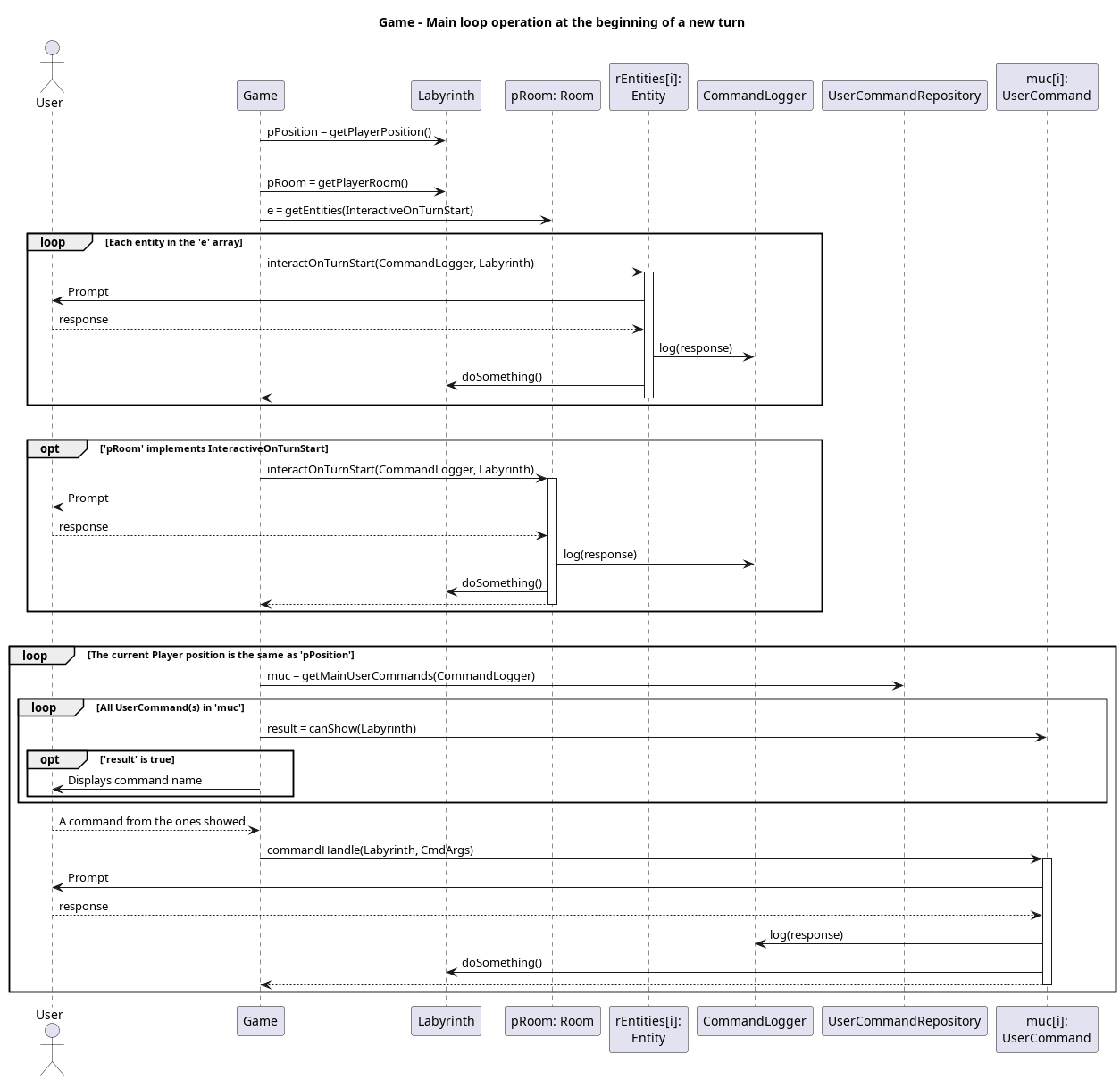
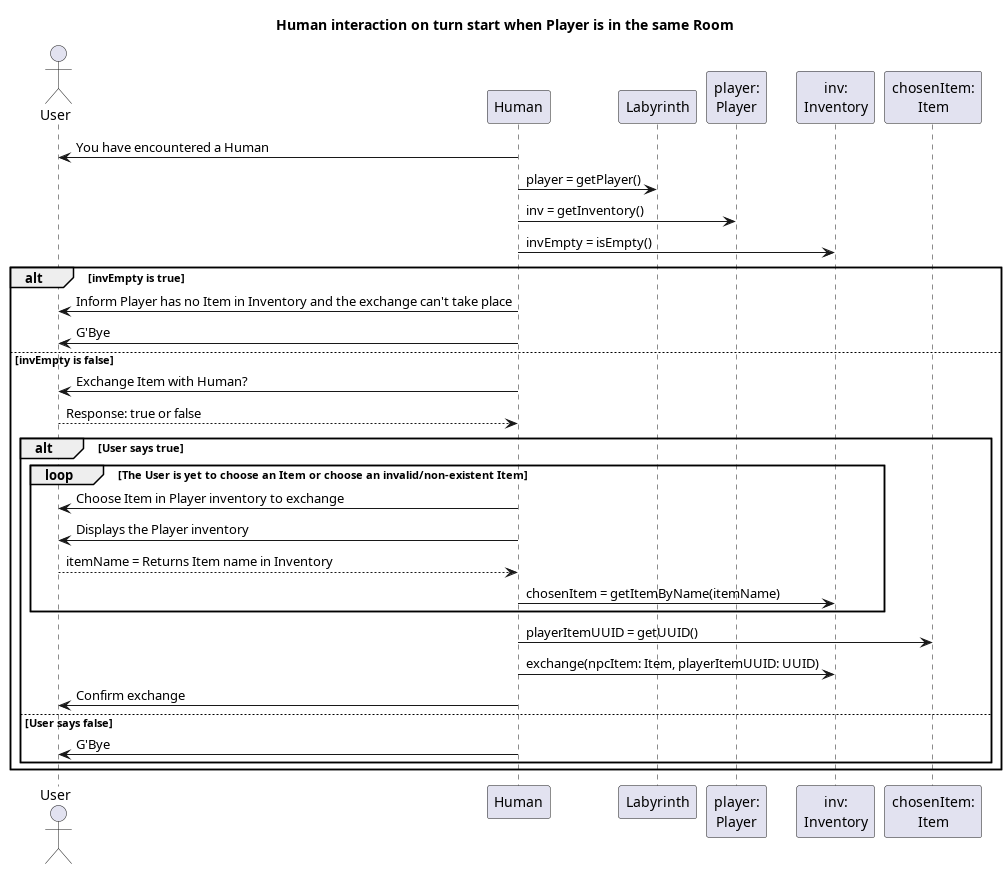
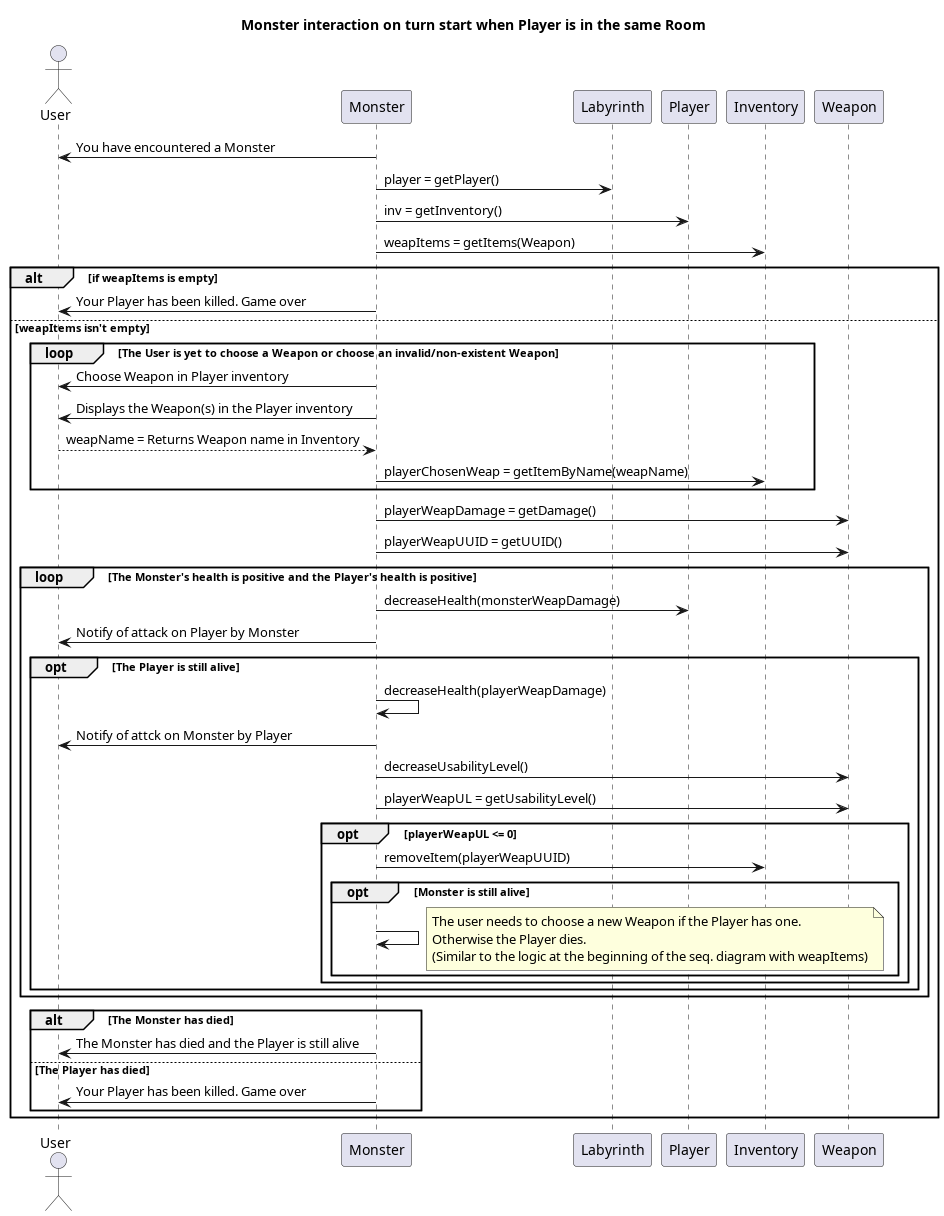
Initially, we devoted our attention to meticulously designing the layout and mechanics of the game. Through extensive exploration of user stories and diagrams, we tailored the labyrinth's layout, inventory management system, and interactions with non-player characters (NPCs) to align seamlessly with our overarching goals.
As we transitioned into the coding phase, our commitment to our vision remained unwavering. We translated our comprehensive design into code, refining the labyrinth's structure and augmenting it with additional dynamic features to further enhance player engagement. Our primary objective during this phase was to synchronize every element of the game with our core vision, ensuring that each line of code contributed meaningfully to the immersive experience we envisioned.
In essence, our project was crafted to deliver an immersive text adventure experience for players through the intricate design of a labyrinthine journey. Each chamber brimmed with diverse rooms teeming with engaging objects and interactive elements, promising players an unforgettable adventure that seamlessly fused challenge with excitement.
Visual Representation of the Labyrinth
Navigate the labyrinth using your mouse!
Name: KeyOKey
Difficulty: Easy
Size: 6x6 grid
Player's starting position: (4, 4)
Name: Slalom
Difficulty: Medium
Size: 47x4 grid
Player's starting position: (1, 1)
Blocked Room (X): Cells marked with the letter "X" outline the perimeter of the maze, defining its limits. They are colored in orange.
Teleport Room (T): Rooms indicated by the letter "T" are teleportation rooms. These rooms may allow the player to teleport to another location within the maze. Teleporters are represented by blue-colored symbols.
Room With Doors (L): Rooms indicated by the letter "L" are blocked rooms. These rooms serve as impassable obstacles, restricting the player's movement within the maze if they don't have the key. They are represented by dungeon doors.
Empty Space ( ): Empty spaces in the maze indicate areas where the player can move freely. These spaces may also conceal characters or items, adding complexity to the game. They are depicted with black text.
Player (P): The player's current position in the maze is indicated by an icon resembling a character. In the "KeyOKey" maze, the player is located at the bottom right corner, while in the "Slalom" maze, the player is located at the top left corner.
Victory (V): Victory is represented by two flags. This indicates the area where the player needs to reach to win the game.
How to play
When you launch the game for the first time, you'll be greeted with a prompt asking you to choose between two options: "ng" and "rs."
1. "ng" (New Game): Selecting "ng" allows you to start a new adventure from the beginning. This option is ideal if you're eager to embark on a fresh journey through the labyrinth without any previous progress.
2. "rs" (Restore Save): Choosing "rs" enables you to resume a game that you've previously saved. If you've made progress in the game and wish to continue from where you left off, selecting this option will allow you to restore your saved game state. This is useful if you want to continue your adventure without starting anew.
After opting to start a new game, the next step is to select a labyrinth to explore. You'll be presented with a list of labyrinth names, such as "KeyOKey" or "Slalom." To gather more information about a specific labyrinth, type "info" followed by the name of the labyrinth you're interested in. Once you've made your decision, type "select" followed by the name of the labyrinth to confirm your choice.
By following these steps, you'll be ready to embark on an exciting adventure through the labyrinth of your choosing.
List of Gamerules
The following table outlines the commands available to players during the game and provides brief descriptions of what each command does. This list serves as a quick reference guide to help players understand how to interact with the game:
Command
Description
help
Displays the list of available commands, assisting the player in understanding the possible actions they can take.
look
Provides information about the current room, allowing the player to get a sense of their surroundings and any potential items.
openInv
Shows the player's inventory, listing all the items the player is carrying.
drop [item name]
Allows the player to drop a specific item from their inventory, removing it from their possession and leaving it in the current room.
back
Enables the player to return to the previous room they were in, useful for retracing steps or escaping danger.
take [item name]
Lets the player collect an item from the current room, adding it to their inventory for later use.
use [item name]
Allows the player to use an item from their inventory, which could affect the game in various ways depending on the item.
useInRoom [item name]
Allows the player to use an uncollectable item in the current room, which could affect the game in various ways depending on the item.
north, south, east, west
Commands that move the player in the specified direction, enabling exploration of the labyrinth.
save [file://<absolute_path>/<saveFileName>]
Saves the current state of the game to the local filesystem, allows the player to continue from the same point at a later time.
save [s3://<accessKey>:<secretKey>@<host>/<bucketName>/<objectPath>]
Saves the current state of the game online to a S3 bucket, allows the player to continue from the same point at a later time.
Special characters (such as a possible / in the accessKey/secretKey) may need to be percent-encoded to be read correctly.
Exits the game, allowing the player to leave the game session.
Technologies Used
Name
Version
Description
Java
22.0.1
Environment and programming language used to develop the application.
JavaDoc
22.0.1
Tool for generating API documentation from Java source code.
Maven
8.5.10
Build automation tool primarily used for Java projects, facilitating dependency management, project structuring, and automated build processes.
Jira
9.16.0
Project management software for managing user stories and project tasks.
JUnit
5.10.2
Framework for automated testing of Java classes.
IntelliJ
2024.1.1
Integrated development environment (IDE) for Java and other programming languages, offering advanced coding assistance, productivity features, and tools for software development.
PlantUML
1.2024.5
Tool for creating UML diagrams to visualize the project's design.
User stories
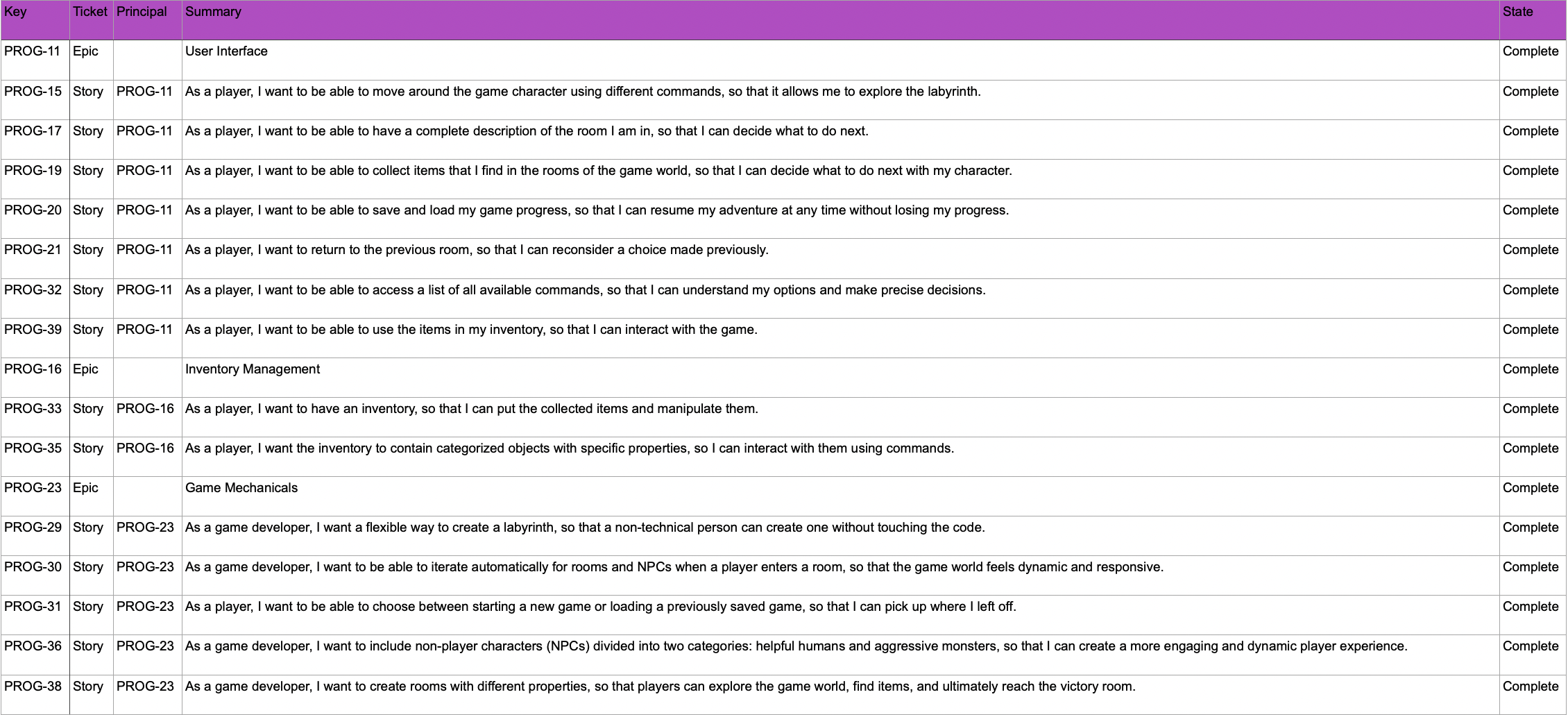
Project Epics Overview
The project is divided into three epics: User Interface, Inventory Management, and Game Mechanics. Each epic contains various user stories detailing specific features and functionalities.
1. User Interface
This epic primarily deals with the implementation and functionality of user commands within the game. It focuses on creating an intuitive and responsive interface that allows players to interact seamlessly with the game environment. This includes features such as command parsing, input validation and feedback messages.
2. Inventory Management
This epic entails specifying the functions and details of each item type, including their attributes, effects, and interactions within the game world. It involves defining the intricacies of item management, such as inventory organization, item acquisition, usage mechanics, and the impact of items on gameplay progression.
3. Game Mechanics
Defines the essential rules and mechanics of the game, covering core gameplay elements such as player actions, interactions with the environment and non-player characters, health and status management, and other fundamental aspects that drive the game's narrative and challenges.
For more detailed descriptions of user stories, you can access our project management software Jira by following:
Checkout the prebuilt artifacts produced by Github's CI on each version release here!
Note: You most likely want to download the JAR file suffixed with -jar-with-dependencies.jar as it bundles runtime dependencies inside.
How to Build
To build the game, you need a working install of Maven. The game has been verified to run with Java 22. While it is expected to run on prior versions of Java, the developers make no assurances about compatibility with them.